
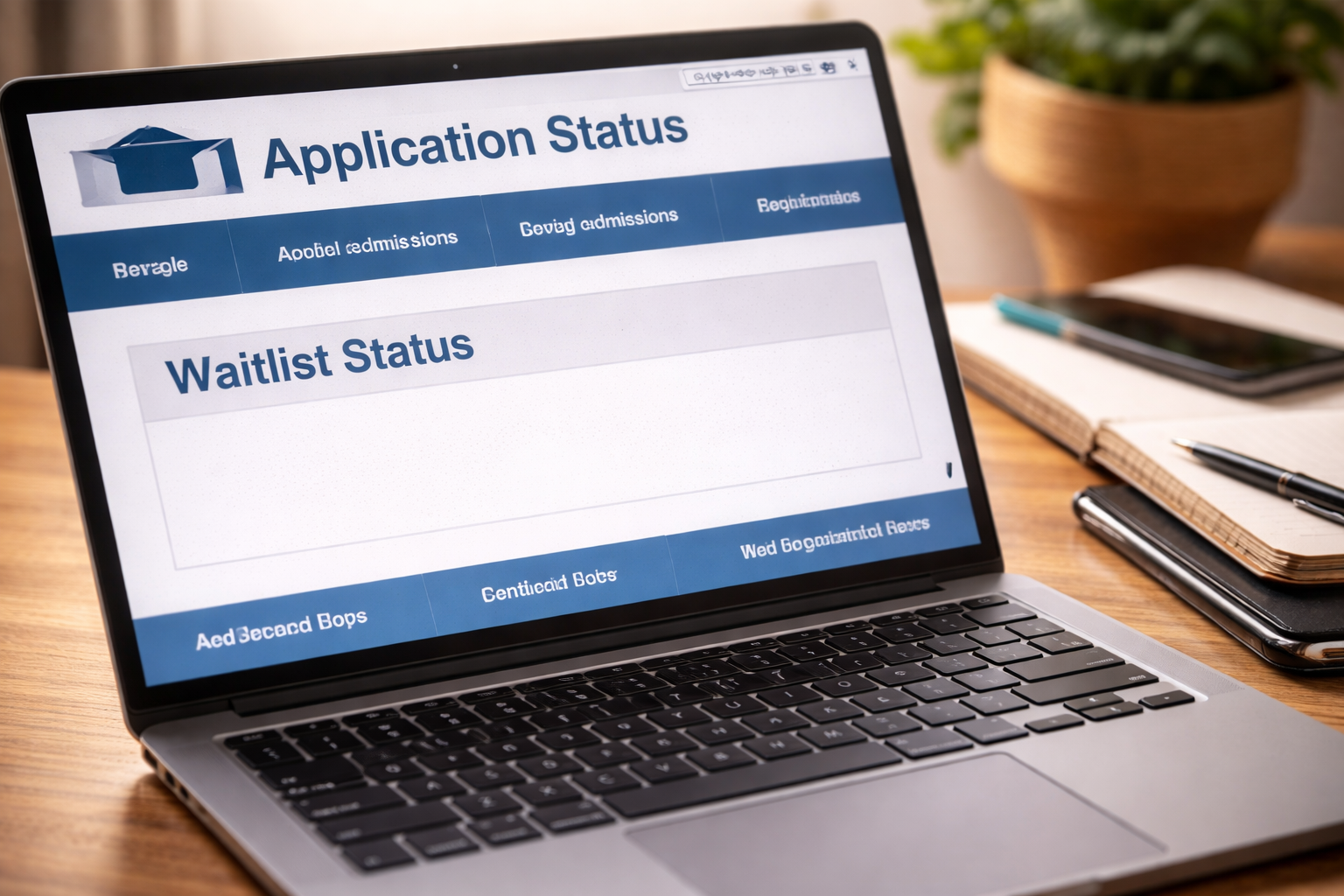
Waitlist status disappeared — I wasn’t “checking my portal.” I was doing that quiet, reflexive scan you do when you’re trying not to care too much. Same login. Same dashboard. Then I froze. The waitlist message — the one that had been sitting there for weeks — was gone. Not updated. Not replaced. Gone.
There was no email. No text. No subject line screaming a decision. Just a cleaner page that suddenly felt louder than any notification. When a waitlist status disappears, the danger isn’t the change itself — it’s how fast your brain fills the silence with assumptions. If your waitlist status disappeared, you don’t need comfort. You need a precise plan that protects your file and forces clarity without looking desperate.
If your admissions portal has been glitchy or slow for weeks, this internal guide helps you separate “system lag” from “real movement”:
First 10 Minutes: Lock the Evidence (This Matters Later)
When waitlist status disappeared, you need proof of what changed and when. This is not paranoia. It’s good practice.
- Screenshot the full portal page (include the URL bar if possible).
- Screenshot any checklist section (complete/incomplete).
- Write down the exact time and time zone you noticed the change.
- Check email inbox + spam + promotions for the last 72 hours.
- If your portal has a “communications” tab, screenshot it too.
If you contact admissions later, a clean record prevents confusion and helps them locate your file state.
What This Usually Means (Without Overpromising)
When waitlist status disappeared, the portal is reacting to a backend status change, a system refresh, or a batch release preparation.
Most schools use an admissions CRM that pushes portal messages in waves. Before a wave, systems often:
- Remove temporary waitlist language to avoid showing the wrong message during an update
- Move applicants into sub-groups (priority waitlist, extended waitlist, deny-pending)
- Recalculate class size models after deposit deadlines
- Sync decisions across departments (admissions, housing, scholarships)
Disappearance is not a final decision by itself. It’s a signal that something is moving behind the scenes.
Choose the Right Interpretation (Don’t Treat All Disappearances the Same)
Use this box like a decision map. Pick the path that matches your situation and follow only those steps. This is the fastest way to handle waitlist status disappeared without guesswork.
Path A — Waitlist Text Gone, Portal Otherwise Normal
No new decision appears. Checklist is intact. No new tasks.
Path B — Waitlist Text Gone + “Decision” Area Blank or Missing
A section that used to show status looks empty or collapsed.
Path C — Waitlist Text Gone After You Submitted a LOCI/Update
You sent a letter, grades, or an update and the portal changed within 1–10 days.
Path D — Waitlist Text Gone Near Deposit Deadline or Known Waitlist Movement Window
Timing aligns with common admissions operational cycles.
Path E — Multiple Things Look Off (Documents, Checklist, Tabs Missing)
Portal may be mid-refresh or partially broken.
Path F — You See a New Hold, Missing Item, or “Incomplete” Suddenly
Your file might have been moved or flagged for missing materials.
Path G — Parent/Student Portals Show Different Views
One view shows waitlist language; the other doesn’t.
Path H — Your Friend’s Portal Changed Too (Mass Change)
Multiple applicants report the same disappearance at the same time.
Pick the closest path. Then act like someone who’s serious — not someone who’s spiraling.
Path A: Status Gone, Everything Else Normal (Most Common)
This version of waitlist status disappeared is often a transitional state. It can happen right before decisions are posted, or when the school re-labels waitlist categories internally.
- Do not email within the first hour unless you have an urgent deadline.
- Wait one business day to see if a decision posts automatically.
- If nothing posts, send a short confirmation email asking whether your file remains active and complete.
Why waiting one business day works: admissions systems often push overnight updates and follow with email the next morning or next business day.
Path B: The “Decision” Area Looks Blank (Portal Layout Change)
If waitlist status disappeared and the decision section is blank, your portal may be between templates.
- Try another browser (Chrome + Safari/Edge).
- Log out, clear cache, log back in.
- Check if the portal has a “Status Update” tab that moved.
- Look for a “View Update” button that appears only on desktop.
Do not assume rejection from a missing layout. Blank templates are common during updates.
Path C: Portal Changed After You Sent an Update (This Can Be a Good Sign)
When waitlist status disappeared shortly after a LOCI or grade update, it can indicate your file was reopened for review.
That is not a guarantee — but it is movement.
- Do not send another update immediately.
- Make sure your update was received (look for a received timestamp or upload record).
- If the portal shows nothing new after 5–7 business days, send a short email confirming receipt.
Over-contacting right after a file reopens can backfire. You want a clean review process.
Path D: Timing Matches Waitlist Movement Windows (Use the Calendar)
Waitlist activity often clusters around real institutional dates: deposit deadlines, housing deadlines, scholarship reconciliation, and transfer decision cycles.
If your waitlist status disappeared within 72 hours of a major deadline, interpret it as “batch processing likely.”
- Check the school’s admitted-student deposit deadline date (if public).
- Check whether the school historically pulls from waitlist in May/June (varies by institution).
- Watch for email within 1–3 days.
Timing is a stronger indicator than feelings.
Path E: The Portal Looks Broken (Multiple Sections Missing)
If waitlist status disappeared and documents/checklists are also missing, treat it as a technical issue first.
- Screenshot everything (missing tabs, missing checklist, missing upload history).
- Check the portal on mobile and desktop.
- Search your email for any portal maintenance notices.
- If still broken, email admissions tech support (or admissions) with screenshots.
Technical refreshes often affect large groups at once. This is where Path H becomes relevant.
Path F: Sudden “Incomplete” or New Missing Item (Act Same Day)
This is the one version where waitlist status disappeared can be risky. If your file suddenly shows incomplete, you must act quickly.
Common triggers:
- Final transcript requirement
- Midyear report mismatch
- Residency verification requests
- Financial aid cross-system sync (sometimes impacts portal flags)
What to do:
- Screenshot the missing item notice.
- Verify whether you already submitted it.
- Send a short email: “My portal now shows [item] missing. I previously submitted it on [date]. Can you confirm receipt and update my file?”
Do not wait a week on an “incomplete” flag. That can delay or block a review.
If you suspect your file is missing key pieces, this internal guide is the closest match:
Path G: Parent Portal vs Student Portal Mismatch
Some schools render different portal views based on account permissions. If waitlist status disappeared in one view but not the other:
- Trust the student portal more than the parent view.
- Screenshot both views.
- Wait one business day before escalating unless a deadline is within 48 hours.
Mismatch often resolves after the next sync cycle.
Path H: Many Applicants Report the Same Change (Mass Update)
If your waitlist status disappeared at the exact same time as others, it is likely a system-wide update.
- Do not flood admissions with identical emails.
- Wait 24 hours to see if decisions post.
- If nothing posts, email once with your screenshot and a calm confirmation request.
Mass changes are usually operational, not personal.
What to Send (Short Script That Gets a Useful Response)
When waitlist status disappeared, the best email is short, neutral, and easy to route.
- Subject: Portal Status Clarification — Applicant [Your ID]
- Body: “Hello, I noticed my waitlist message is no longer visible in the applicant portal as of [date/time]. Could you please confirm my application remains active and complete, and let me know if any additional action is needed on my side? Thank you.”
Do not ask, “Did I get in?” Ask for confirmation of file status and completeness.
What Not to Do (These Behaviors Quietly Hurt Outcomes)
- Sending multiple LOCIs in a short period
- Emailing several staff members at once
- Threatening to withdraw or “choose another school”
- Uploading random certificates or awards with no context
- Calling daily
Admissions offices remember tone. You want to be seen as stable, not volatile.
If a Decision Is Coming, Be Ready to Move Fast
Applicants underestimate how fast timelines can move after waitlist status disappeared. If you are admitted from the waitlist, you may have:
- 72 hours to accept
- Limited time to secure housing
- Immediate financial aid follow-ups
Prepare your logistics now: update your contact info, keep documents organized, and avoid travel or unreachable windows if possible.
Official Waitlist Context
For a neutral, third-party explanation of how U.S. colleges use waitlists — including why waitlist movement can occur well after initial decisions — this higher-education guidance resource provides useful context:
Waitlists are not rankings. They are tools schools use to shape a class.
Self-Check Checklist (Put Your Situation Into a Winning Frame)
- I noticed the change on: ________ (date/time)
- My checklist is: Complete / Incomplete
- The portal is missing: Status text / Decision tab / Documents / Other
- I submitted an update recently: Yes / No (date: ________)
- A major deposit deadline just passed: Yes / No
- I have a backup enrollment option secured: Yes / No
These answers determine the correct action. Guessing wastes time.
FAQ
Does it mean I was rejected?
No. waitlist status disappeared often reflects a system transition, not a final decision.
Should I email immediately?
If everything else looks normal, wait one business day. If the file shows incomplete or missing items, email the same day.
Is it a glitch?
Sometimes. If multiple portal sections are missing or peers report the same change, it may be a system update.
Should I send another letter of continued interest?
Not immediately. If you already sent one, give the office time to process it.
How long until a decision posts?
It varies. Many decisions appear within days, but some schools run waitlist pulls over several weeks.
Key Takeaways
- waitlist status disappeared is usually a sign of backend movement — not a verdict.
- Document the change immediately with screenshots and timestamps.
- Choose the correct path: normal transition, blank template, post-update review, deadline wave, technical refresh, or missing items.
- Email for file confirmation, not for emotional reassurance.
- Prepare logistics now so you can act fast if admitted.
I didn’t treat the moment my waitlist status disappeared as a personal message. I treated it like a system change that required a professional response: document it, verify my file stayed active, and avoid mistakes that create noise.
Right now, do this: screenshot your portal, check your checklist for any new “incomplete” flags, and give it one business day for automatic updates. If nothing posts, send a short confirmation email asking whether your file is still active and complete. Then keep your backup plan stable while you stay reachable — because when movement happens, timelines can be surprisingly fast.